Help Center
Answers for students and letter writers.
Getting Started
What is PrivateFolio?
PrivateFolio is a secure online dossier service for students applying to graduate, medical, and professional programs and for advisors who assist with these applications.
- Request confidential letters of recommendation from your writers
- Upload supporting documents (transcripts, personal statements, etc.)
- Deliver letters and application packets to schools via application portals, email, or US Mail
- Use unique email addresses assigned to letters so portals like AMCAS and AACOMAS can receive letters directly from PrivateFolio
How do I log in?
- Go to privatefolio.com and click Log In in the header.
- Enter your email address and password.
- Click Sign In.
Use "Forgot password?" on the login page if you need to reset. A reset link arrives within a few minutes — check your spam folder if you don't see it.
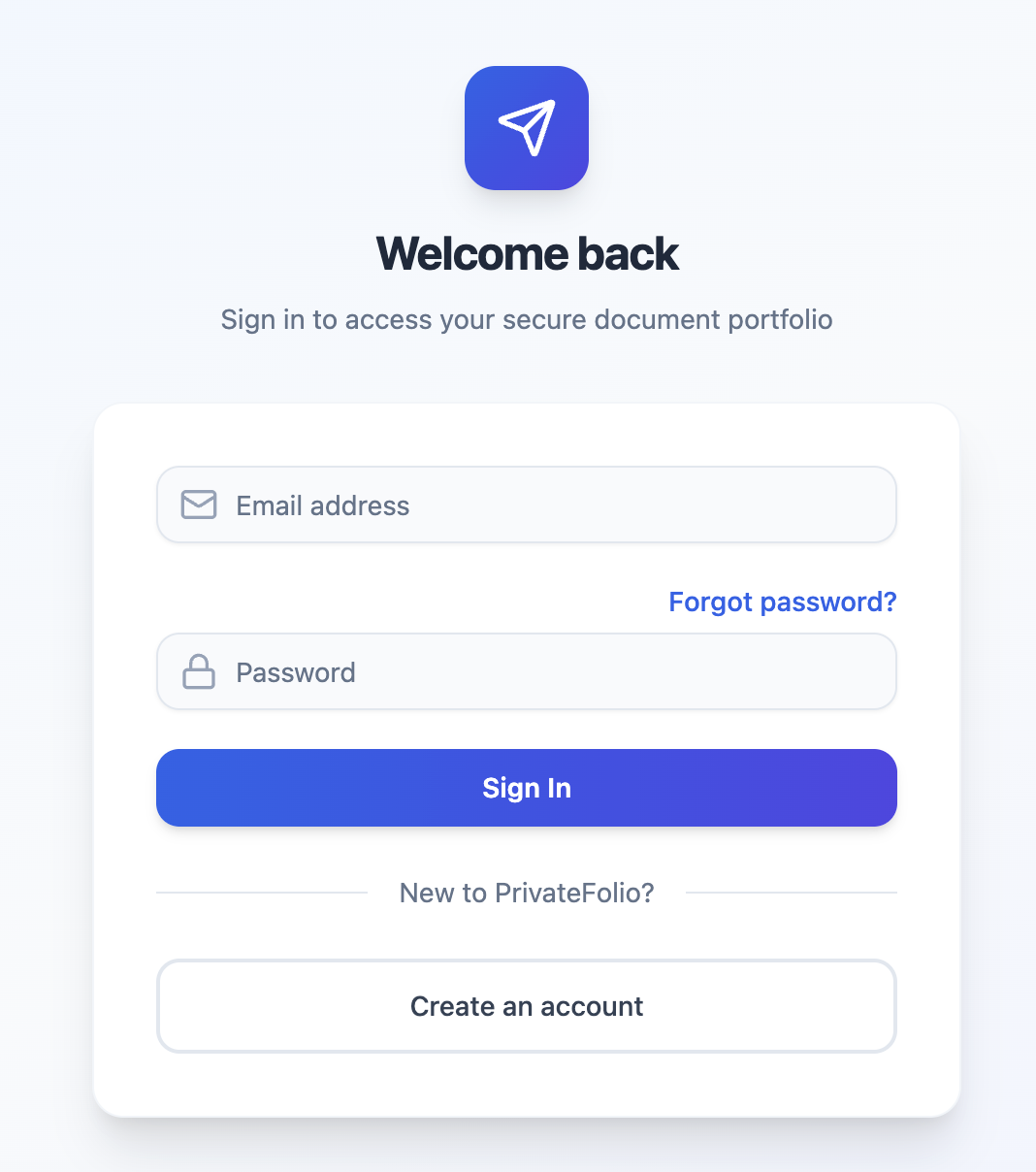
The PrivateFolio login page
What can I do from my dashboard?
Your dashboard is your home base. From here you can:
- Request New Letter — send a request to a recommender
- Upload Document — add a file to your dossier
- New Delivery — send materials to a school or program
- See your letter counts, pending requests, and recent delivery history
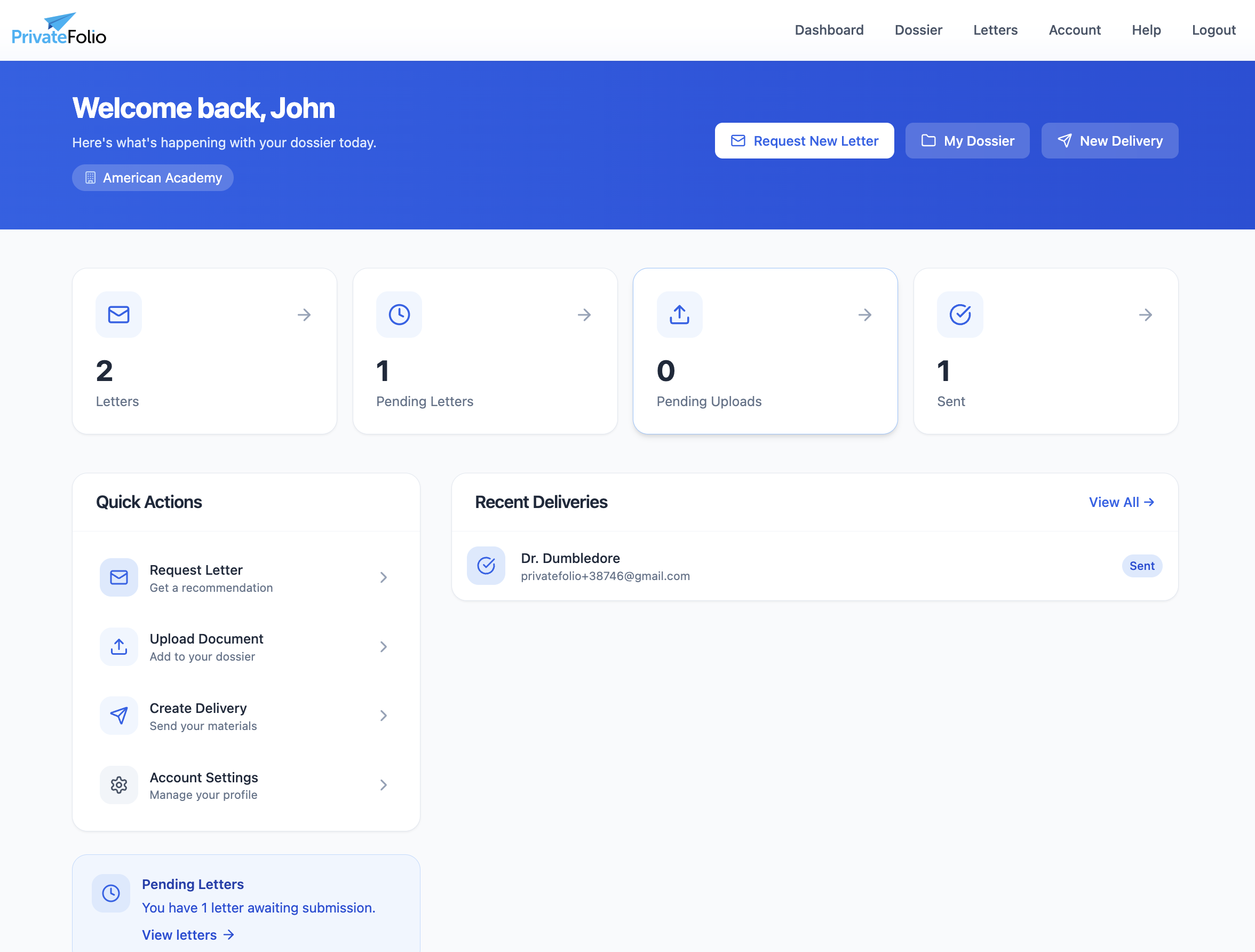
Your student dashboard
Letters of Recommendation
How do I request a letter of recommendation?
To request a letter:
- Click Letters in the navigation menu.
- Click the + Request New Letter button.
- Fill in the form:
- Check the FERPA waiver box (required — confirms the letter is confidential).
- Click Send Request.
Form fields:
- Letter title — a label for your reference, e.g., "Dr. Smith – Research Supervisor"
- Due date — when you need the letter by
- Writer details — full name, email, job title, institution, and phone. (Note - phone number is required by some application portals. If you don't have a letter writer's personal phone, you can enter their institution phone number or the phone number for your advising office.)
- Writer type — whether they are science faculty, an MD/DO, etc.
- Optional message — context or reminders for the writer
Your recommender receives an email with a secure link to upload their letter. The request appears as "Pending" on your Letters page.
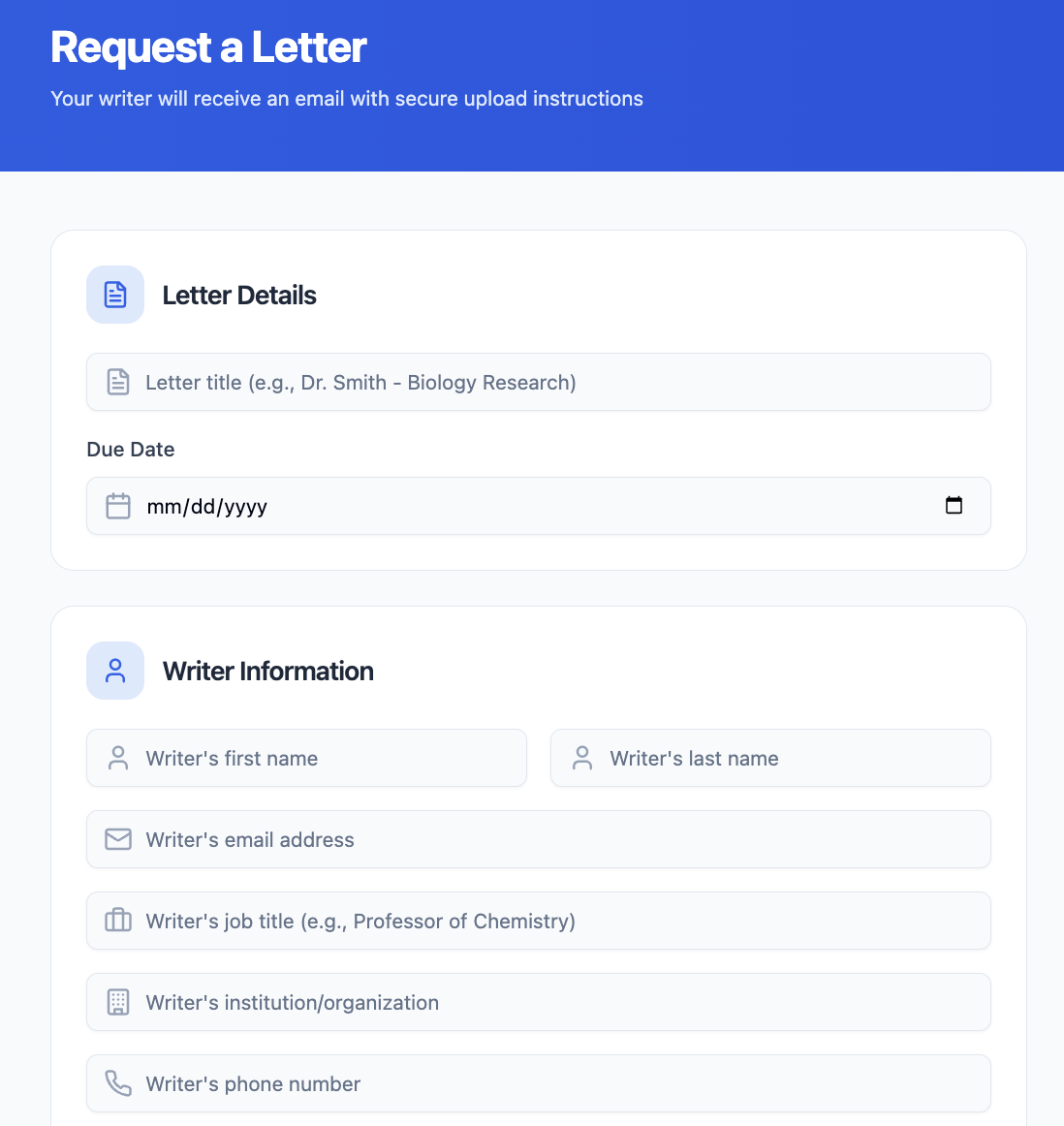
Letter request form — top: title, due date, writer details
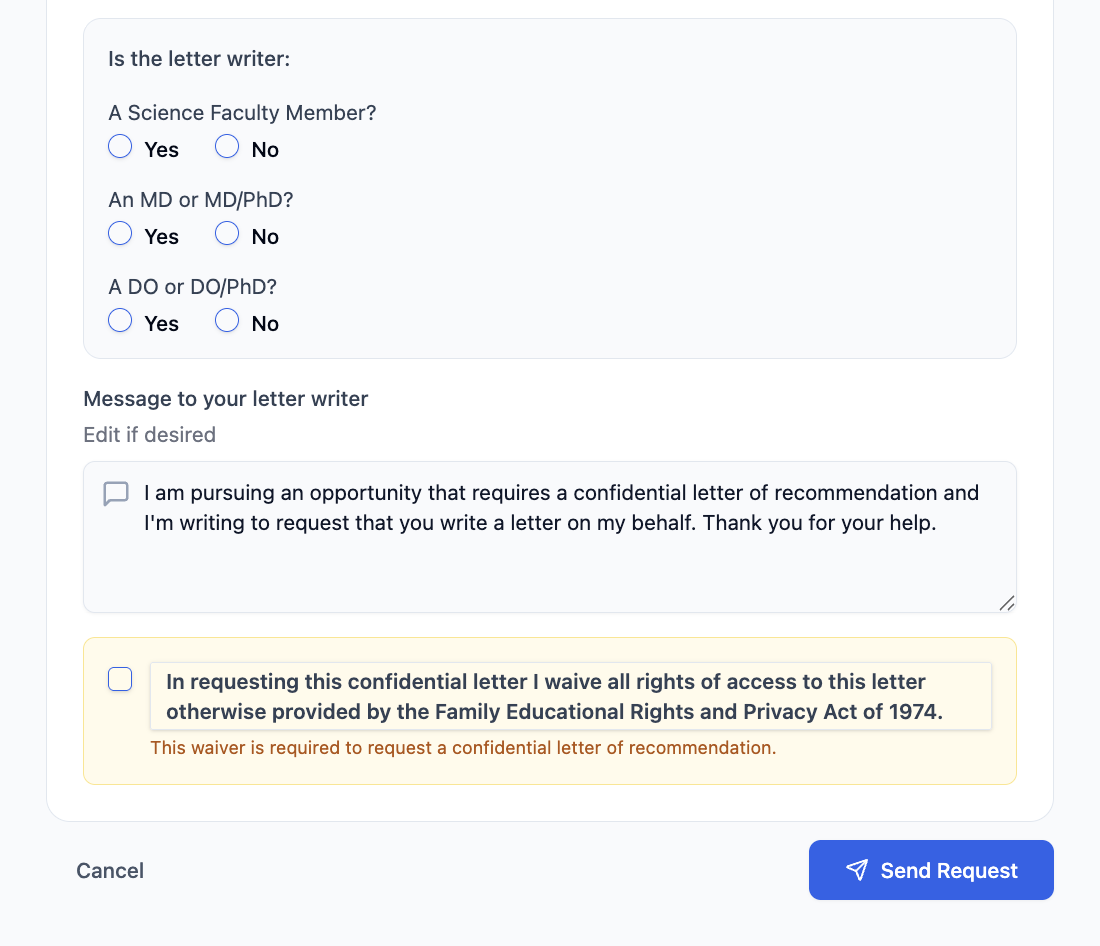
Letter request form — bottom: writer type, FERPA waiver, Submit button
What is the unique email address for my letter?
Once your writer submits a letter, PrivateFolio assigns it a unique email address in the format send######.LastName###@privatefolio.com (e.g. send207514.Einstein514@privatefolio.com). These email addresses are used to connect your letters with application portals.
When a portal (AMCAS, AACOMAS, etc.) asks for your letter writer's contact email, enter that unique address — not your recommender's personal email.
You'll find each letter's unique email on your Letters page, displayed next to that letter's title. Click the copy icon to copy it.
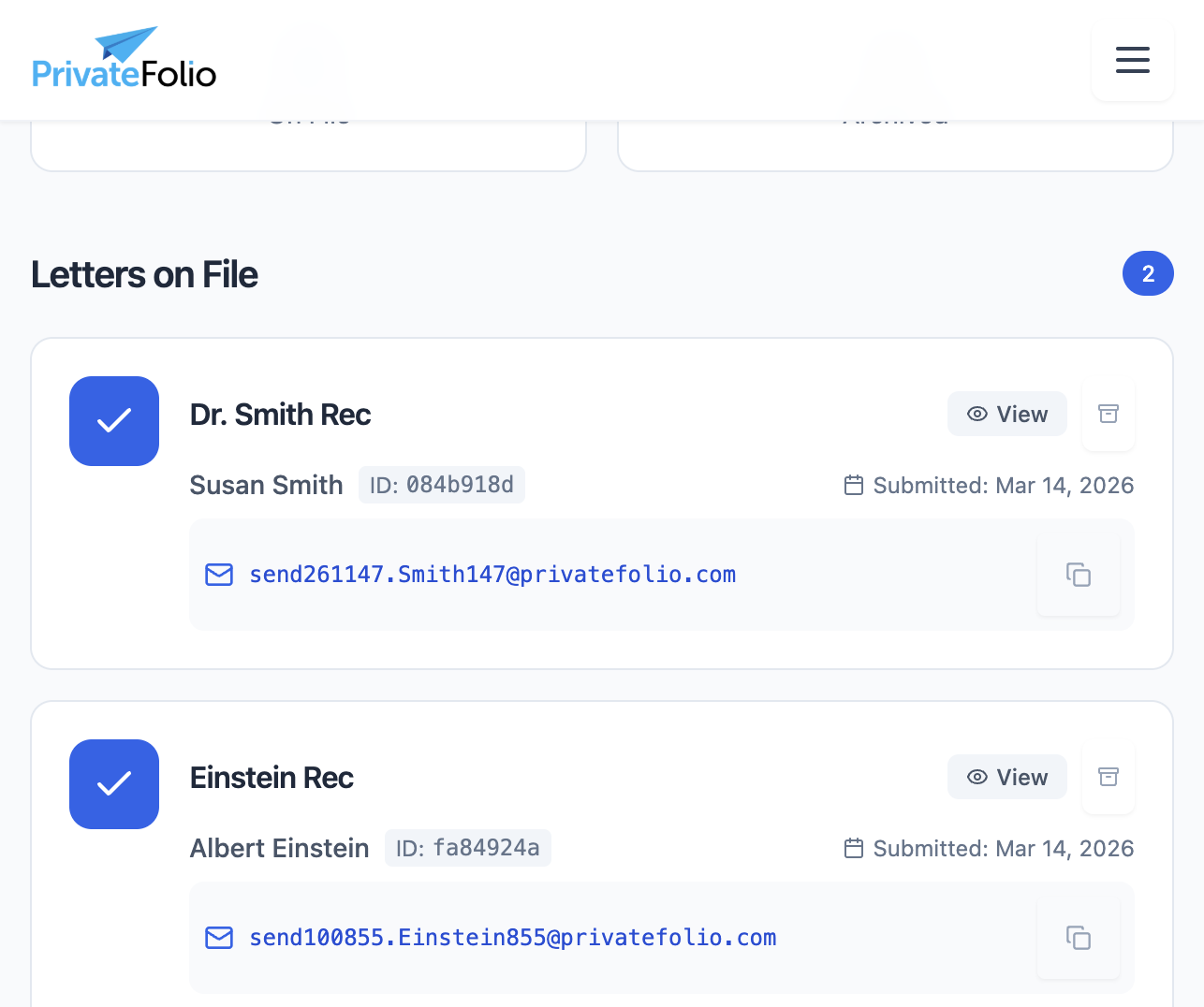
Letters page — each on-file letter shows its unique send address
How do I send letters to AMCAS, AACOMAS, or other application portals?
AMCAS and AACOMAS accept letters via email upload. Here's how it works:
- On your AMCAS or AACOMAS application, enter your letter's unique email address as the contact email for that letter writer.
- The portal sends an upload request to that address.
- PrivateFolio receives the request and emails you a confirmation that we're working on it.
- We upload the letter to the portal on your behalf.
- You receive a second email confirming that the delivery is complete.
How do I transmit my letter packet to TMDSAS?
- From your dashboard, click New Delivery to go to the delivery initiation page.
- Click Request TMDSAS Packet Transmittal.
- Select the appropriate packet.
- Click the Confirm & Submit button.
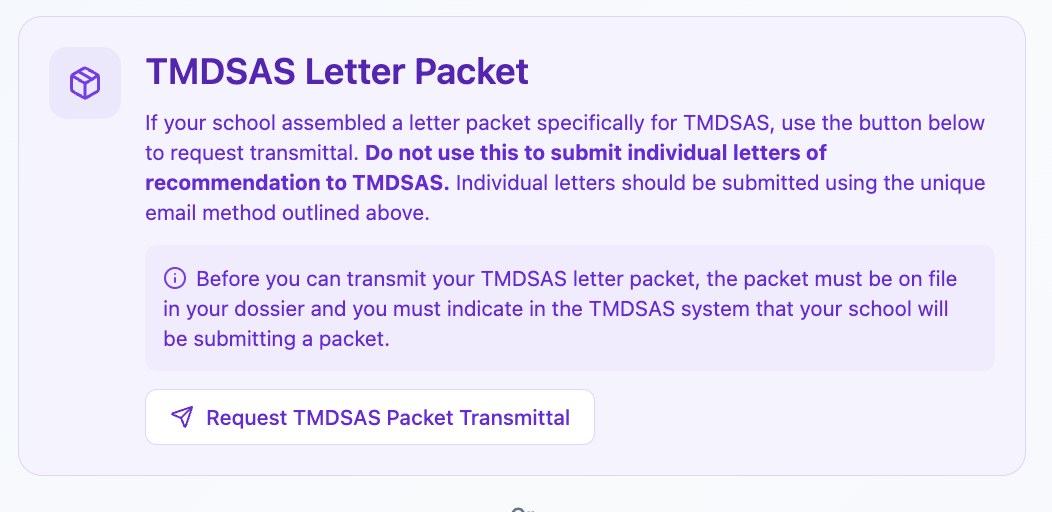
TMDSAS packet transmittal request
Can I view the contents of my letters?
No. Letters are confidential. You can see that a letter is "on file" and track whether it has been delivered, but you cannot open or download the letter itself.
This is by design — most application portals require confidential letters and you waive all rights of access when making a letter request on our platform.
My writer says they never received the request email. What should I do?
- Ask your writer to check their spam or junk folder for an email from PrivateFolio.
- From your Letters page, find the pending request and use the Send Reminder option to resend the email.
- If the email address you entered had a typo, cancel the request and submit a new one with the correct email.
If the issue persists, your letter writer can email us the letter directly at help@privatefolio.com. You can also contact us with your writer's name and we'll assist.
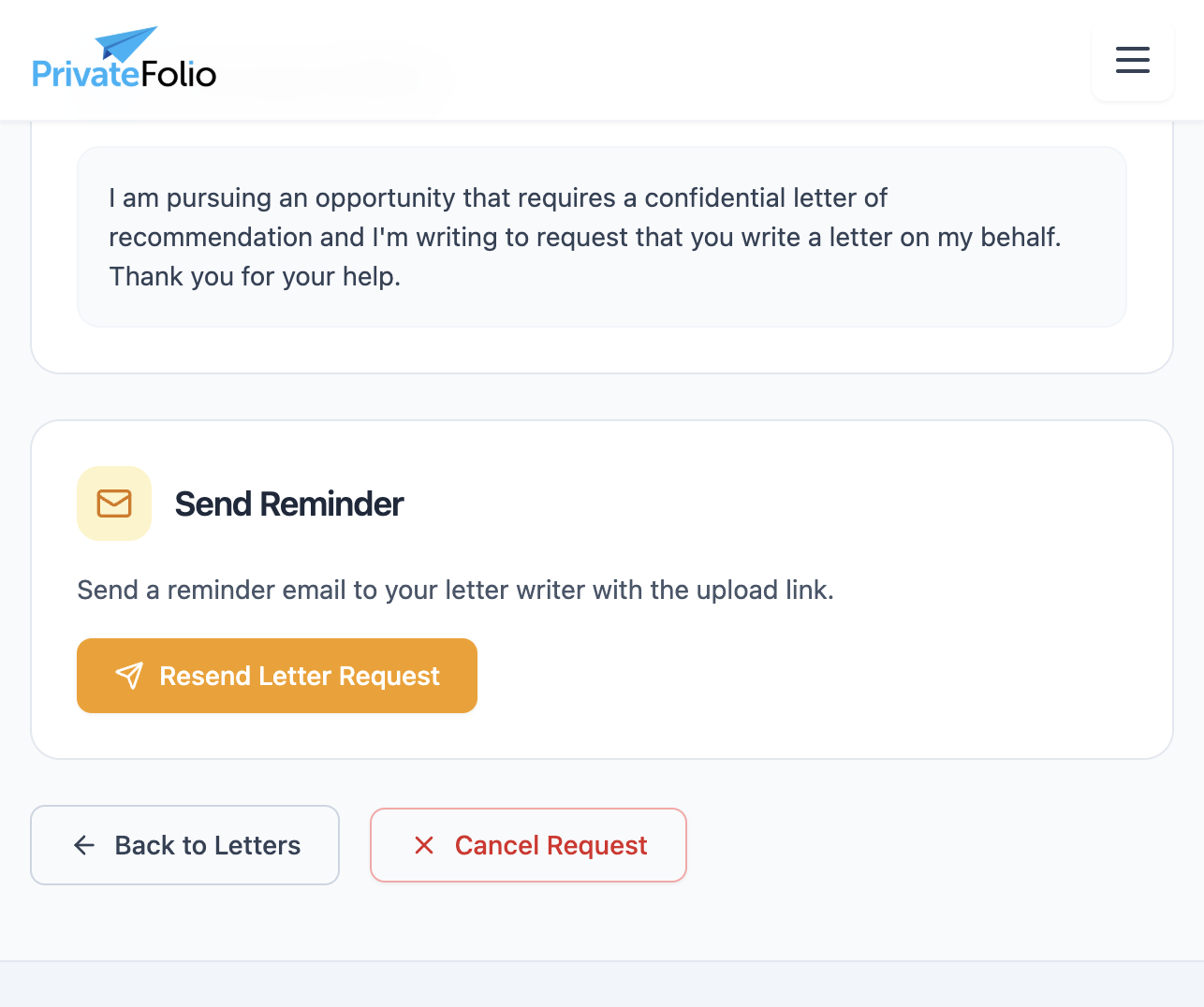
The Letters page showing a pending request
How do I change the title of a letter?
- Go to Letters in the navigation menu.
- Find the letter request you want to update and click on it to open the detail view.
- Click the Edit icon next to the letter title.
- Type the new title and save.
How do I change the due date of a letter?
- Go to Letters in the navigation menu.
- Find the letter request and click on it to open the detail view.
- Click the Edit icon next to the due date.
- Select the new date and save.
Dossier & Documents
What can I upload to my dossier?
You can upload the full range of academic application materials:
- Transcripts (official or unofficial)
- CV or resume
- Personal statement, statement of purpose, or diversity statement
- Writing samples or research papers
- Teaching statement, cover letters, certifications
- AMCAS Letter Request Form and other portal-specific supplements
Accepted formats: PDF, DOC, DOCX, or images (JPG, PNG). Maximum file size is 4 MB; large images are auto-compressed.
How do I upload a document?
- Go to Dossier in the navigation menu.
- Enter a document title (e.g., "Transcript – Spring 2024"). This is your reference label.
- Optionally select a document type from the dropdown (e.g., Transcript, Personal Statement).
- Click Choose file and select your file, or drag and drop it into the upload area.
- Click Upload Document.
The document appears immediately in the "Your Documents" list below the form.
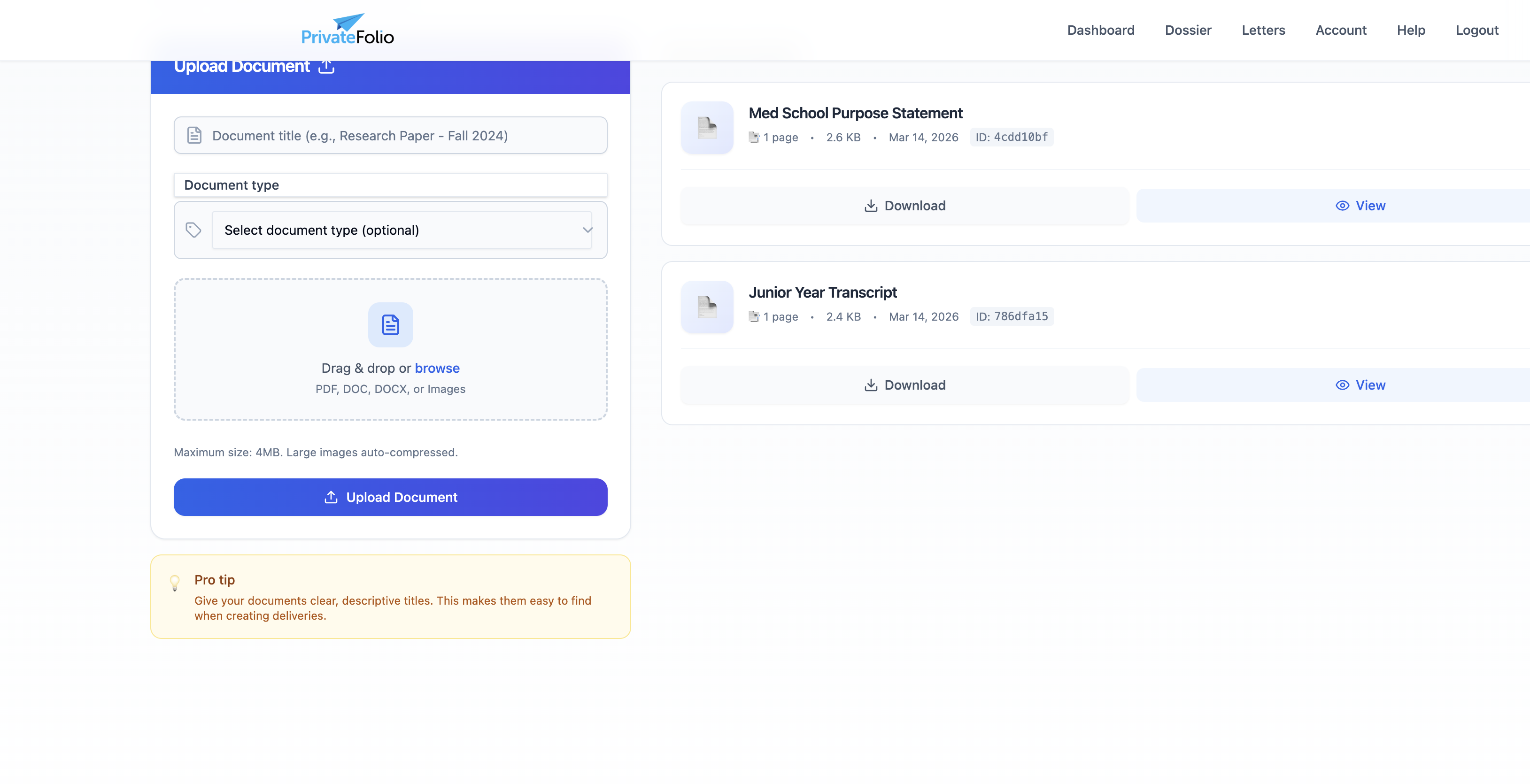
The dossier page with the upload form
Deliveries
How do I send my materials to a school or program via email or mail?
- From your dashboard, click New Delivery.
- Choose Email (electronic delivery) or US Mail (requires an extra processing fee).
- Enter the recipient's name, institution, and email address.
- Select which documents and letters to include.
- Arrange them in order (drag to reorder if needed).
- Review the summary and optionally preview the PDF.
- Click Send.
You'll receive a confirmation email. Check delivery status from your account page.
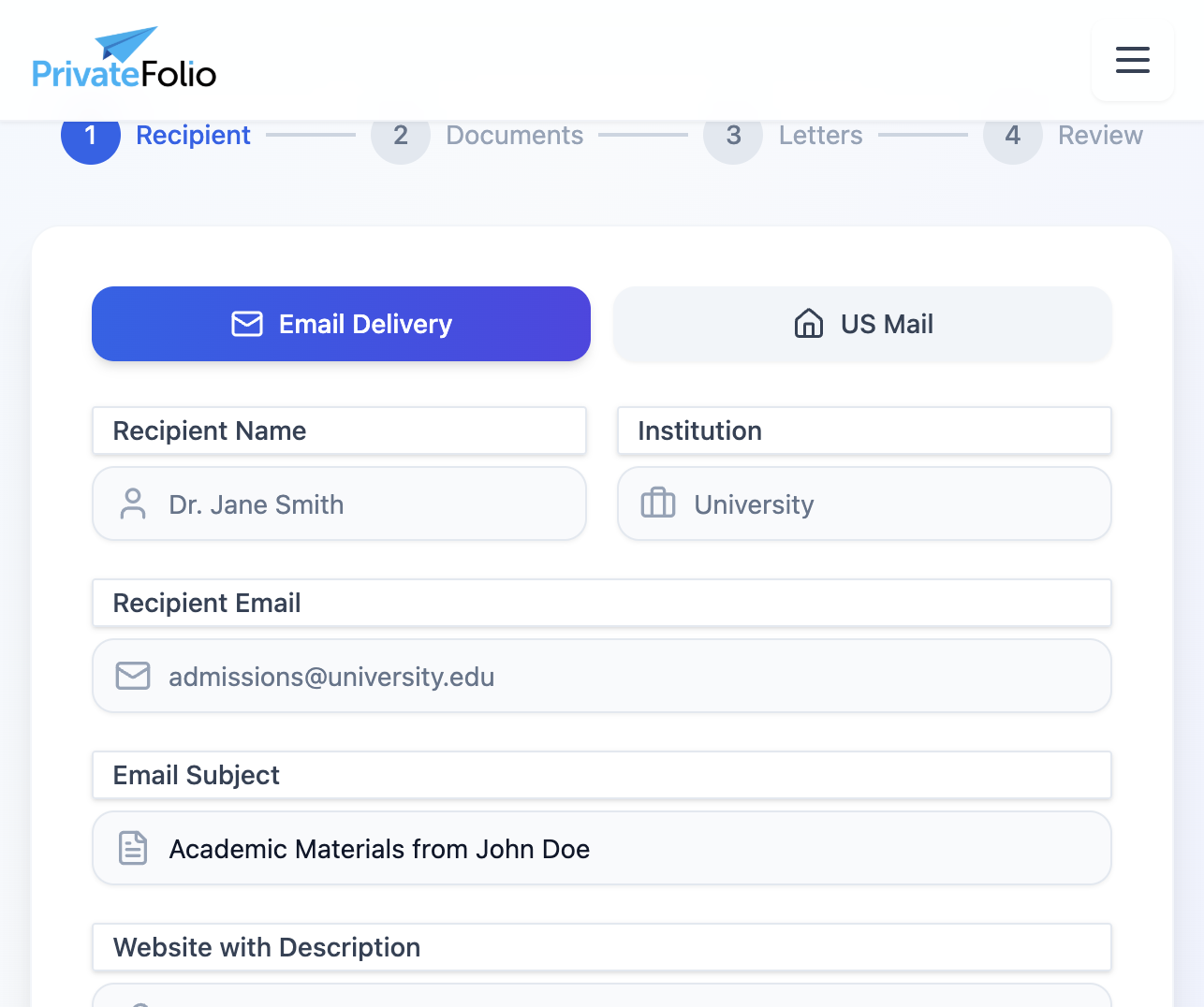
Starting a new delivery — choose email or US Mail
Which application portals does PrivateFolio support?
We support all major U.S. application portals. When a portal asks for your letter writer's contact email, enter the unique email assigned to that letter:
- Health professions: AMCAS, AACOMAS, AADSAS, CASPA, PharmCAS, PTCAS, NursingCAS, TMDSAS
- Law: LSAC
- Public health: SOPHAS
- Graduate school portals that accept uploads
We also deliver to international institutions by email.
How long does delivery take?
- Email deliveries to institutions: often within minutes, though some may be queued for review.
- Portal uploads (AMCAS, AACOMAS, etc.): typically 1–2 business days, often same day.
- US Mail: 5–10 business days depending on destination.
During peak application season (June–September for medical schools), portal deliveries may take slightly longer. You receive an email when each delivery is confirmed.